Instruction of renaming the whole iOS project (CocoaPods integrated)
Open Xcode
-
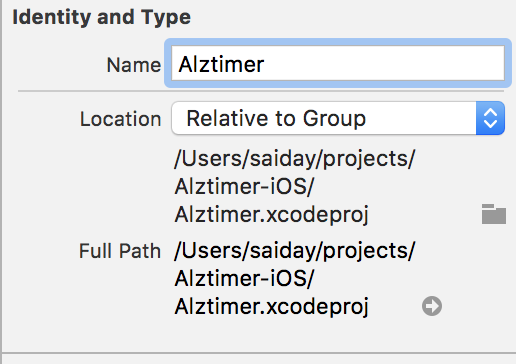
Select your project inside Project navigator, there’s a Name field inside File inspector under Identify and Type section.
-
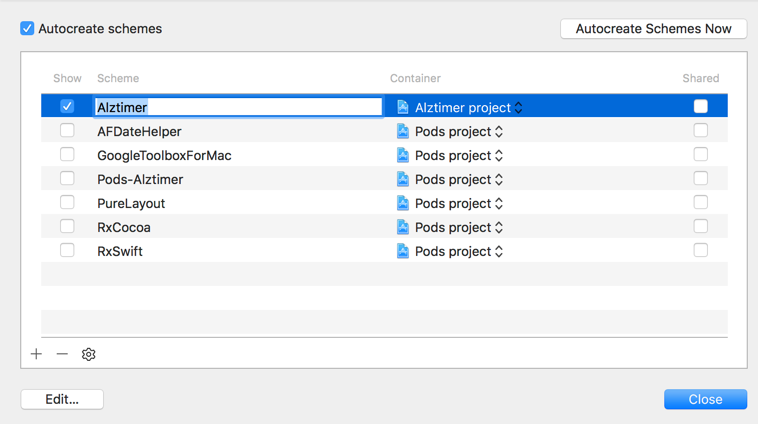
Rename Scheme on Manage Schemes by clicking scheme name
Quite Xcode
- Rename your
OLD.xcworkspacetoNEW.xcworkspace - Rename your assets folder such as
OLDandOLDTeststoNEWandNEWTests
Reopen Xcode
-
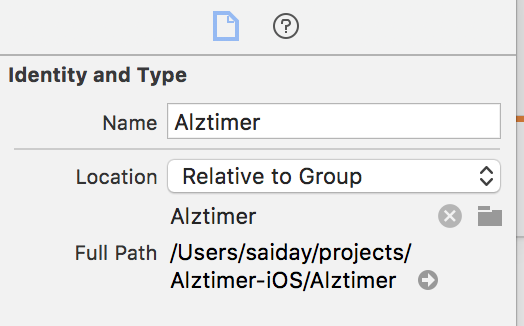
Project navigator will indicating your folder is missing, select missing folders, correct it with new folder name on File inspector’s name field just like the very first step.
-
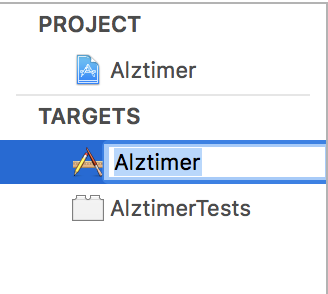
Rename targets name by clicking target name inside Targets list
-
Search and rename all hard-coded legacy name of target’s build settings such as Info.plist and Product bundle identifier
Quit Xcode
- execute
pod deintegrate, CocoaPods will deleting pod related configs, scripts, generated frameworks and alsoPods/directory
Reopen Xcode
- Clean and build
References: Most of the steps were highly inspired from StackOverflow Answers: How do I completely rename an Xcode project (i.e. inclusive of folders)?